
Spreadsheet Compare
Compare Excel files and identify every changed cell.
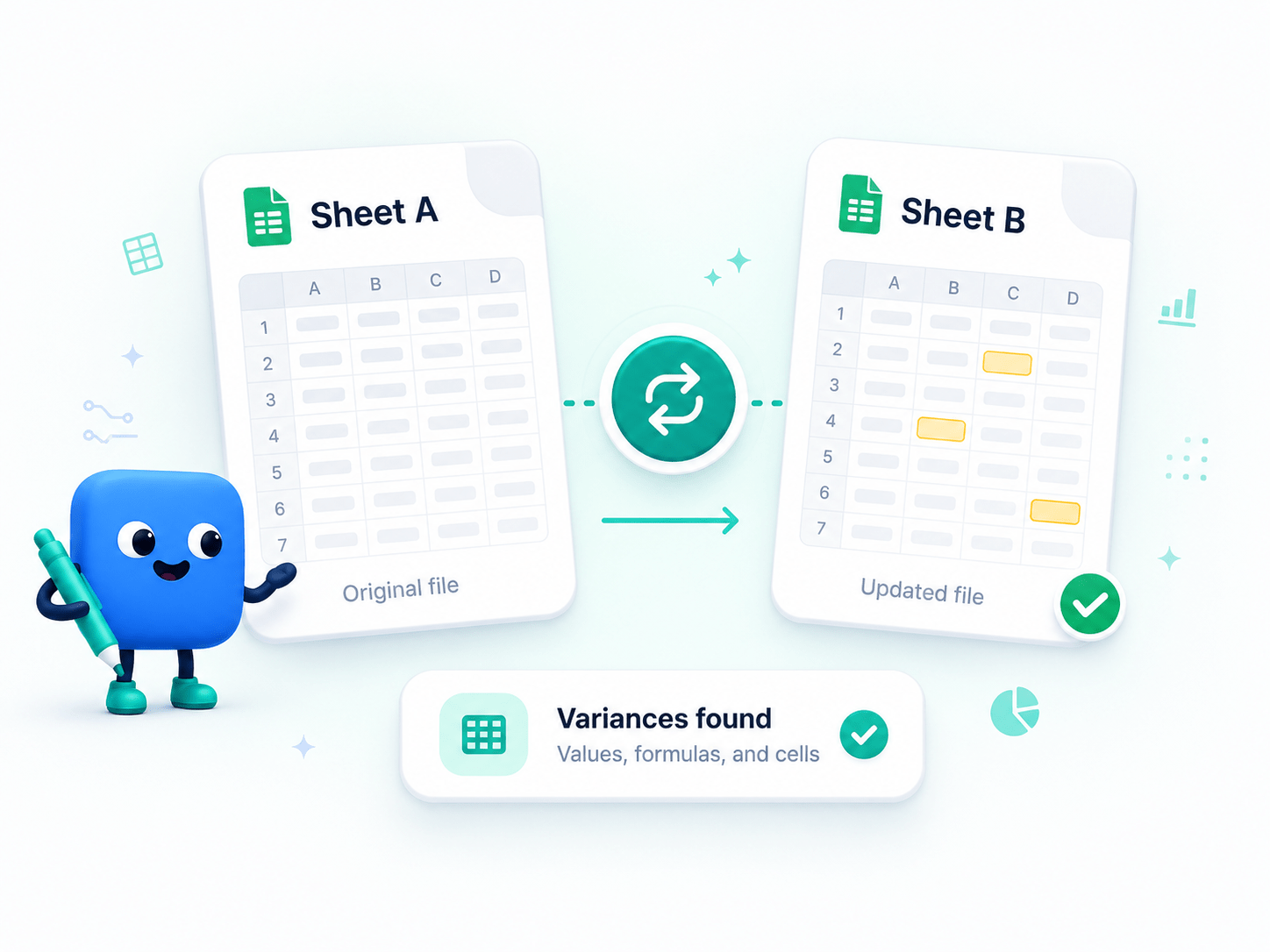
How to Compare Spreadsheets
Compare two Excel files or spreadsheets and spot changes instantly, ensuring data integrity and version accuracy.
- Upload your original and modified Excel files.
- Run the comparison engine to scan cells.
- Review highlighted cell differences.
- Save or export the comparison report.
Key Features
Engineered for robust performance, absolute privacy, and efficiency.
Cell-by-Cell Comparison
Quickly identify changed cell values between two spreadsheets.
Fast Difference Detection
Instantly highlight added, modified, and removed data for faster reviews.
Secure
Compare spreadsheets locally on your device without uploading your files.
Use Cases
Discover how professionals leverage this tool across various industries.
Financial Auditing
Verify ledger updates, budget changes, and expense reports.
Inventory Management
Compare stock lists and shipment manifests for discrepancies.
Data Migration
Ensure data integrity before and after database exports.
FAQs
Got questions about our features or security? We've got answers.